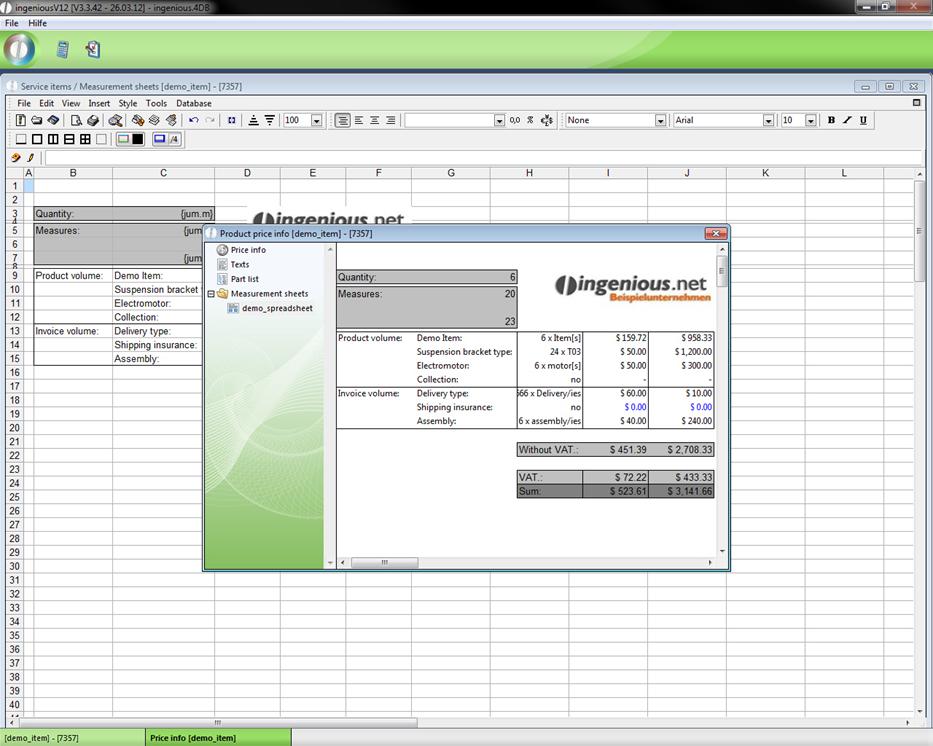
With a spreadsheet, it is possible to display the ordered items with all data in tabular or graphic format. In the organization of the spreadsheet, plenty of flexibility is given to you. In order to create a spreadsheet, click in the parts list on the  button. The parts list disappears and a blank table appears.
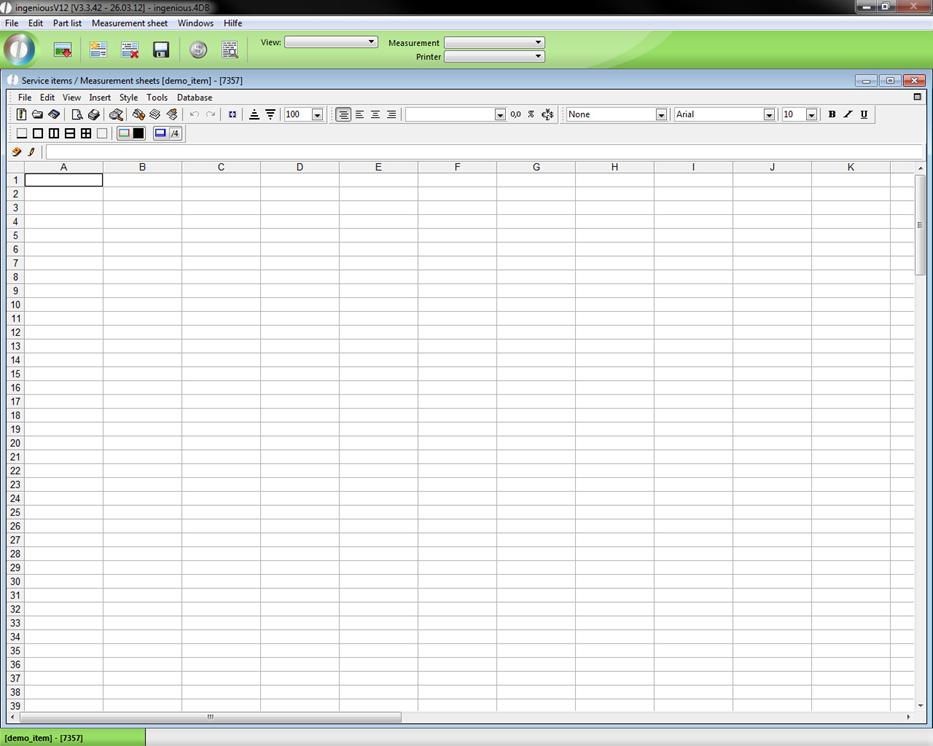
In this table, you create your spreadsheet. There the same functions, operators and placeholders are available to you as they are in the parts list programming. The menu “Style/Cell (s) …” offers numerous possibilities for you to create your spreadsheet by means of frames, font colors and background colors, etc. Here you find setting variations on writing, color, adjustment, format and properties of the respective cells. The insertion of pictures or graphic arts is possible by means of a cache. Simply highlight the desired graphic arts and use the command “Edit / Copy” or the key combination Ctrl + C to copy into the cache. Now the graphic arts must be copied only with the “Edit / Insert” command or Ctrl V from the cache in the spreadsheet.
In the following exercise, you will create a spreadsheet for the current record (demo_item).
Practice creating a spreadsheet
1. Go the spreadsheet view and create the spreadsheet according to the following table.
|
Cell: |
Content: |
|
B3 |
Quantity: |
|
B5 |
Measures: |
|
B9 |
Product volume: |
|
B13 |
Invoice volume: |
|
C3 |
{jum.m} |
|
C5 |
{jum.x} |
|
C7 |
{jum.y} |
|
C9 |
Demo Item: |
|
C10 |
Suspension bracket type: |
|
C11 |
Electromotor: |
|
C12 |
Collection: |
|
C13 |
Delivery type: |
|
C14 |
Shipping insurance: |
|
C15 |
Assembly: |
|
D9 |
{jum.m} x Item[s] |
|
D10 |
{CM_Pce *jum.m} x {jum.suspension_bracket_type} |
|
D11 |
{tab(jum.electromotor)(0;1:"no";jum.m+" x motor[s]")} |
|
D12 |
{tab(jum.collection)(0;1:"no";"yes")} |
|
D13 |
{tab(jum.collection)(0;1:tab(jum.delivery type)("delivery";"shipping":DEL_Q+" x Delivery/ies";jum.m+" x Shipping[s]");"none")} |
|
D14 |
{tab(jum.delivery type)("shipping";"delivery";"Please choose":tab(jum.shipping insurance)(1;0:jum.m+" x insurance[s]";"no");"no";"-")} |
|
D15 |
{tab(jum.delivery type)("delivery";"shipping";"Please choose":tab(jum.assembly)(1;0:jum.m+" x assembly/ies";"no");"no";"-";"-")} |
|
D17 |
Without VAT.: |
|
D19 |
VAT.: |
|
D20 |
Sum: |
|
E9 |
{BP.vk/jum.m} |
|
E10 |
{(CM_Type.vk/CM_Pce)/jum.m} |
|
E11 |
{tab(jum.electromotor)(0;1:0;50)} |
|
E12 |
- |
|
E13 |
{tab(jum.delivery type)("delivery";"shipping";"Please choose":tab(len(jum.postcode))(0;6:0;tab(num(jum.postcode))(3000;4000;5000:70;60;55));0;0)} |
|
E14 |
{tab(jum.delivery type)("shipping";"delivery";"Please choose":tab(jum.shipping insurance)(1;0:(tab(jum.sp/jum.m)(2500;25000:3,5;15));0);0;0)} |
|
E15 |
{tab(jum.delivery type)("shipping";"delivery";"Please choose":0;tab(jum.assembly)(1;0:(tab(jum.m)(6;16;1000:40;35;30));0);0)} |
|
E17 |
=(F9+F10+F11+F13+F14+F15)/C3 |
|
E19 |
=E17*0.16 |
|
E20 |
=E17+E19 |
|
F9 |
{BP.vk} |
|
F10 |
{CM_Type.vk} |
|
F11 |
{tab(jum.electromotor)(0;1:0;(jum.m*50))} |
|
F12 |
- |
|
F13 |
{tab(jum.delivery type)("delivery";"shipping";"Please choose":tab(len(jum.postcode))(0;6:0;(DEL_Q)*(tab(num(jum.postcode))(3000;4000;5000:70;60;55)));0;0)} |
|
F14 |
{tab(jum.delivery type)("shipping";"delivery";"Please choose":tab(jum.shipping insurance)(1;0:(tab(jum.vk/jum.m)(2500;25000:3,5;15))*jum.m;0);0;0)} |
|
F15 |
{tab(jum.delivery type)("shipping";"delivery";"Please choose":0;tab(jum.assembly)(1;0:(tab(jum.m)(6;16;1000:40;35;30)*jum.m);0);0)} |
|
F17 |
=F9+F10+F11+F13+F14+F15 |
|
F19 |
=F17*0.16 |
|
F20 |
=F17+F19 |
2. Format your spreadsheet as you choose.
Your spreadsheet can look as follows:
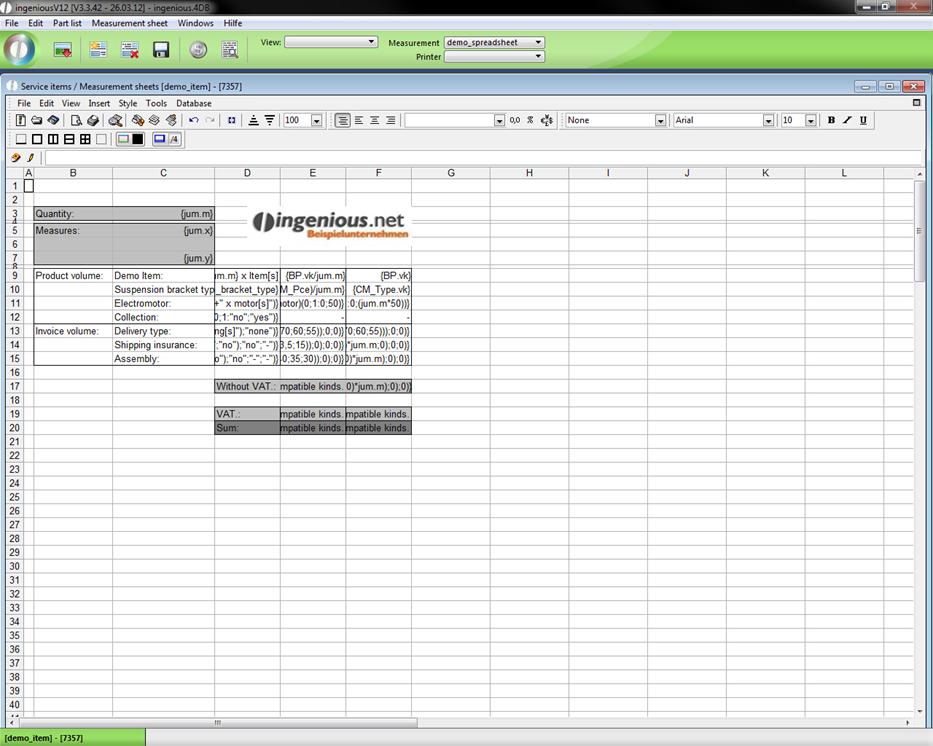
Now test your spreadsheet extensively to remove possible inconsistencies of the cell contents. You can also make several spreadsheets for a parts list.